

Fillable forms are one of the most common everyday Word tasks: intake sheets, checklists, sign-off forms, simple applications. When people think of fillable forms they often picture Adobe and PDFs, but if you have Microsoft Word you can build a clean, reusable form with drop-downs, checkboxes, and date pickers, no extra software required. This guide from IT Solutions Technology Partners (ITS) walks through the current steps in Microsoft 365, including how to lock the form so it does not get broken, and when a business is better served by a dedicated forms or workflow tool.
How do you create a fillable form in Word?
To create a fillable form in Word, enable the Developer tab, type your labels, insert content controls (text boxes, checkboxes, drop-downs, date pickers) for each field, then use Restrict Editing to lock the form so people can fill it in without changing the layout. Finally, save it as a document, a template, or a PDF. The full steps are below.
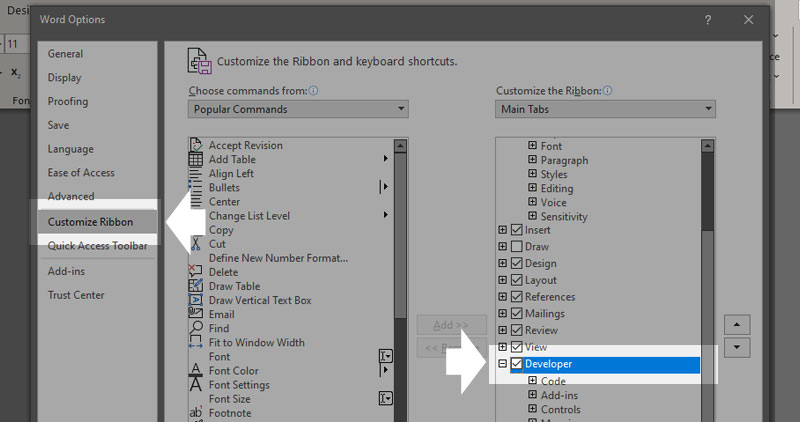
1.Enable the Developer tab.Go to File > Options > Customize Ribbon, check Developer in the right-hand column, and click OK.
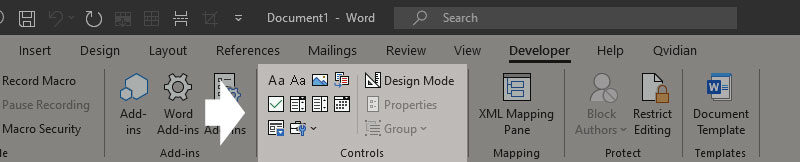
The Developer tab now appears in the ribbon. Its Controls section holds the form fields you will use: Rich Text, Plain Text, Picture, Building Block Gallery, Checkbox, Combo Box, Drop-Down List, and Date Picker.
2. Add your labels and insert content controls. Type the form’s text first (for example “First name” and “Last name”), then place your cursor where the answer should go and click the control you want.
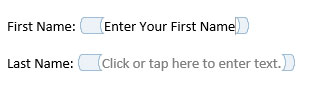
Using a table keeps fields aligned and is the cleanest way to organize a form. Plain Text controls suit short answers like a name or ID; Rich Text allows formatting; Checkbox, Drop-Down List, and Date Picker handle structured choices.
3. Edit the placeholder text. Click Design Mode on the Developer tab to reveal the placeholder text inside each control, then edit it to something clear like “Enter your full name.” Click Design Mode again to exit.
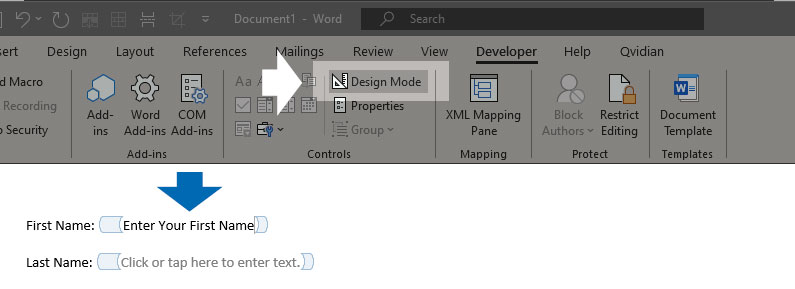

4. Set each field’s properties. Select a control and click Properties (just below Design Mode).
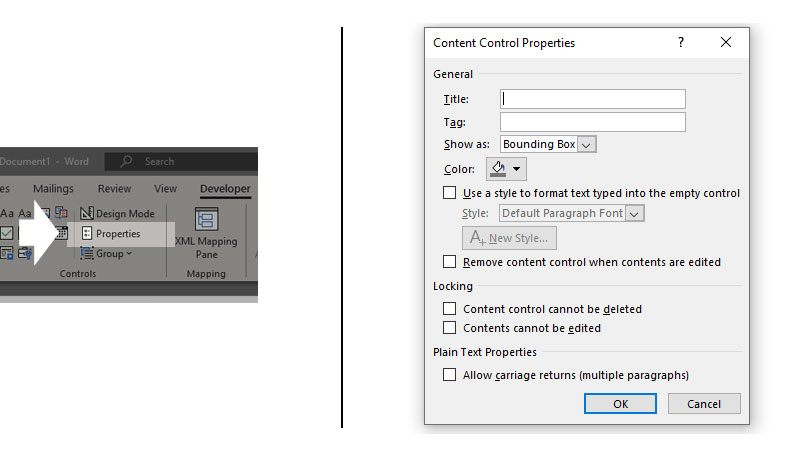
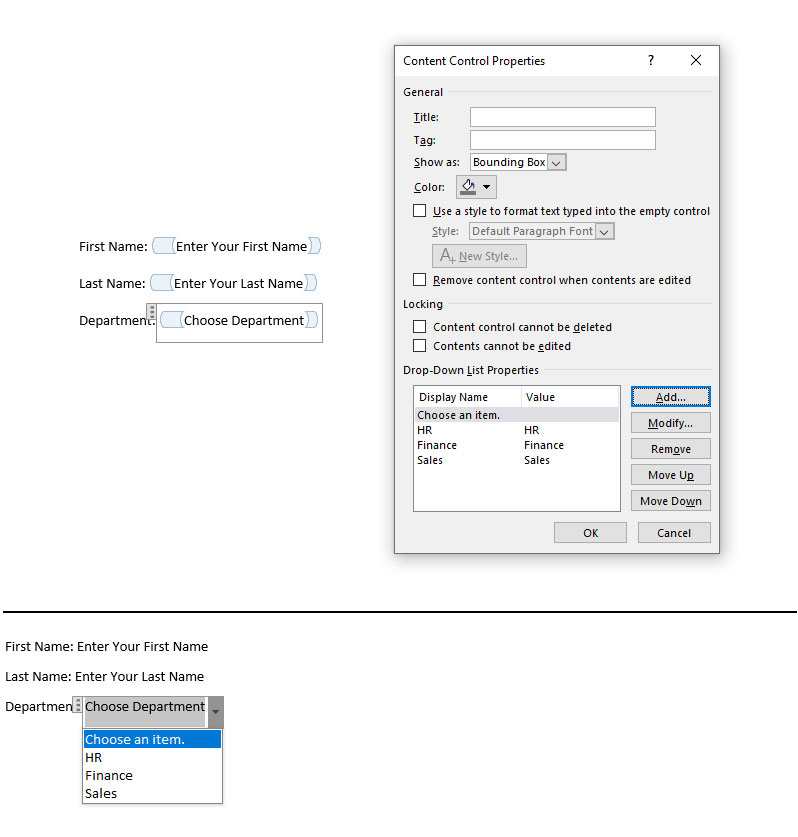
Here you can name the field, set a style, choose a date format, add drop-down options, and decide whether the control can be deleted. For a drop-down or combo box, add each choice under Properties. A combo box differs from a drop-down list in one way: it also lets the user type their own value.
5. Lock the form so only the fields are editable. This is the step most guides skip, and it is what keeps your form from getting broken. On the Developer tab (or the Review tab), click Restrict Editing, check Allow only this type of editing in the document, choose Filling in forms, then click Yes, Start Enforcing Protection. You can add a password if you want. To make changes later, click Stop Protection.
6. Save and share the form. Save as a normal Word document (.docx) so people can fill it in, or as a Word template (.dotx) if you will reuse it often. To share a fixed, print-ready version, export it as a PDF with File > Save As or Export. Keep an unprotected master copy for future edits.
How do you lock a Word form so only the fields can be filled in?
To lock a Word form, go to the Developer or Review tab, click Restrict Editing, check “Allow only this type of editing in the document,” select “Filling in forms” from the drop-down, and click “Yes, Start Enforcing Protection.” Users can then complete the fields but cannot alter labels, formatting, or layout. To edit the form again, click Stop Protection.
Locking matters most for forms you send to other people, such as intake forms, agreements, or anything returned to you completed. Without protection, a recipient can accidentally delete a field or change your wording. If you set a password when enforcing protection, store it somewhere safe, because you will need it to unlock the form later. On a Mac, the equivalent is the Protect Form (lock) button on the Developer tab, which protects the whole document.
Word form, fillable PDF, or online form: which should you use?
Choose a Word form for internal or printable documents you will edit often, a fillable PDF for fixed forms sent outside your organization, and an online form (such as Microsoft Forms) when you need to collect and report responses at scale. Each has clear trade-offs, summarized below.
| Word fillable form | Fillable PDF | Online form (e.g., Microsoft Forms) | |
|---|---|---|---|
| Best for | Internal or printable forms, frequent edits | Fixed forms sent externally, print-ready | Collecting and reporting many responses |
| Editing | Easy to update in Word | Harder to change once built | Edit anytime in the browser |
| Data collection | Manual, no automatic capture | Manual unless integrated | Automatic, into a spreadsheet or database |
| Signatures | No true e-signature | Supports e-signature via added tools | Varies by platform |
| Works offline | Yes | Yes | No, needs internet |
A common question is how to make a fillable PDF from Word. You can export any Word form to PDF, but that produces a static, print-style document. To create a PDF whose fields are themselves fillable, you add form fields in a PDF tool such as Adobe Acrobat after exporting, or you build the form in a dedicated PDF or forms platform from the start.
When do you need more than a Word form?
Word forms are ideal for simple, low-volume, mostly internal use. A business usually outgrows them when it needs to collect and analyze responses automatically, capture legally sound e-signatures with an audit trail, enforce conditional logic or validation, connect the form to other systems, or meet compliance requirements in a regulated industry. At that point, a Microsoft 365 or workflow solution does the job far better than a Word document.
Signs you have outgrown Word forms for business use:
- You are re-keying data by hand. Word forms do not capture responses into a spreadsheet or database. If someone is retyping submissions, that is manual work a tool like Microsoft Forms or Power Automate removes.
- You need real e-signatures. Word’s built-in signature line is not a secure, verifiable electronic signature. Contracts and agreements need a dedicated e-signature platform for signer authentication and an audit trail.
- The same form runs at scale. Onboarding, intake, and approval forms that many people submit repeatedly belong in an automated workflow, not a document emailed back and forth.
- Compliance is in play. In healthcare, legal, and financial services, form data often carries regulatory obligations (for example HIPAA), which means controlled access, retention, and auditability that a Word file cannot provide.
How does IT Solutions Technology Partners help businesses streamline forms and workflows?
IT Solutions Technology Partners helps businesses turn manual, document-based processes into secure, automated workflows. Rather than rebuilding the same form again and again, ITS designs solutions on the tools you already own, using Microsoft 365, Microsoft Forms, Power Automate, and SharePoint, and builds custom applications through its Professional Services team when a process needs more than off-the-shelf tools can offer.
As a Microsoft Solutions Partner for Modern Work, and with a team of roughly 450 to 500 professionals supporting clients from 14 offices since 1994, ITS pairs this workflow expertise with the managed IT, cybersecurity, and compliance foundation that regulated organizations need. For healthcare, legal, and financial services clients, that means form and document workflows built with data protection and frameworks like HIPAA and SOC 2 Type II in mind from the start, not added on afterward. If your team is spending real time on manual forms, that is usually a sign a simple automation project would pay for itself.
Frequently Asked Questions
Can you create a fillable form in Word for free? Yes. Fillable form tools are built into Microsoft Word through the Developer tab, so if you already have Word you do not need extra software. You only need additional tools if you want features Word lacks, such as automatic response collection or verified e-signatures.
How do you make a fillable PDF from a Word document? Export your Word form to PDF using File > Save As or Export. That creates a static, print-ready PDF. To make the PDF fields themselves fillable, add form fields in a PDF editor such as Adobe Acrobat after exporting, or build the form in a dedicated PDF or forms platform.
Why can’t I edit my Word form after protecting it? Because protection is on. Go to the Developer or Review tab, click Restrict Editing, and choose Stop Protection. If you set a password when enforcing protection, you will need it to unlock the form. Keep an unprotected master copy so you can make changes easily.
Does a Word form collect responses automatically? No. Word forms are filled in and returned individually, with no automatic capture into a spreadsheet or database. If you need responses aggregated and reported, use Microsoft Forms or connect a workflow with Power Automate, which is a common step when a form outgrows Word.
Can you create a fillable form in Word on a Mac or in Word for the web? On a Mac, yes, using the Developer tab and the Protect Form button, though protection applies to the whole document. Word for the web has limited support for content controls, so for building and locking forms it is best to use the Word desktop app.
Are Word forms secure enough for contracts and signatures? For informal use, yes, but Word does not provide a legally verifiable electronic signature, signer authentication, or an audit trail. For contracts and regulated documents, use a dedicated e-signature platform, which ITS can help implement and integrate with your existing systems.